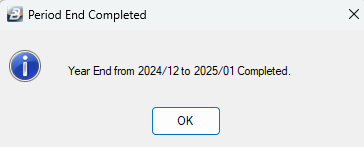
After processing the final period of the year we do a period end procedure to go into the first period of the next tax year. This process we call a 'Year End Procedure".
To simplify this process we have created a 'Wizard' that automatically: - creates the next year`s periods - sets up the common public holidays for the next tax year
Before starting the year end procedure ensure that all necessary reports have been printed and exports prepared.
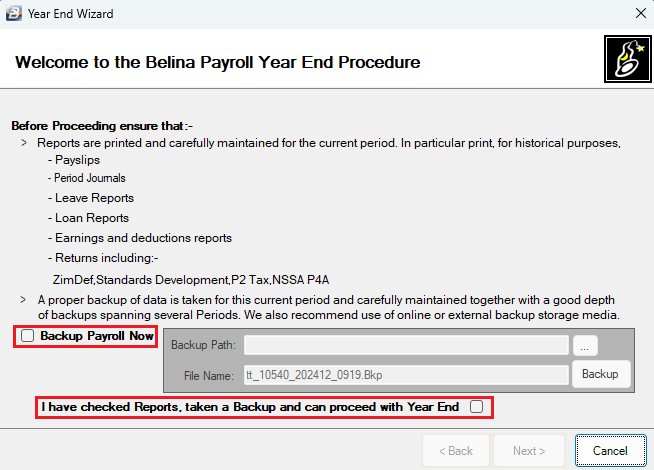
A final Year End Backup should be taken and stored carefully. This can be done before the Year End Procedure is commenced, although it can also be done during the Year End Procedure.
Year End Procedure To do the year end procedure: - Go to the 'Utilities', then 'Period End' menu options
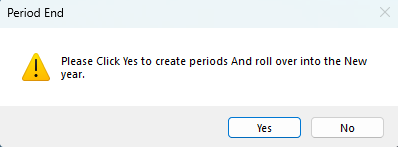
- On the pop-up screen select 'Yes' to proceed with the Year-End procedure
- It is necessary that you take a Backup if you have not done so already. If you need to do a backup place a tick in the 'Backup Payroll Now' checkbox. - Insert a tick on the check-box with text 'I have checked reports, taken a Backup and can proceed with Year End' - Then select 'Next' to proceed
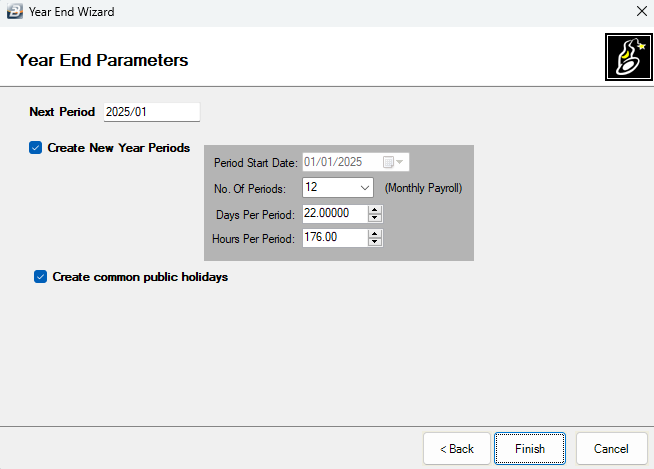
- The check boxes for 'Create New Year Periods' and 'Create common public holidays' come already ticked, keep these. - By default the year end wizard adopts the period settings from the previous tax year. You can change the period settings if necessary. - Click 'Finish' to complete the Year -End procedure and to proceed to enter the Tax tables for 2026.
The next step is to insert Tax Tables of the year 2026
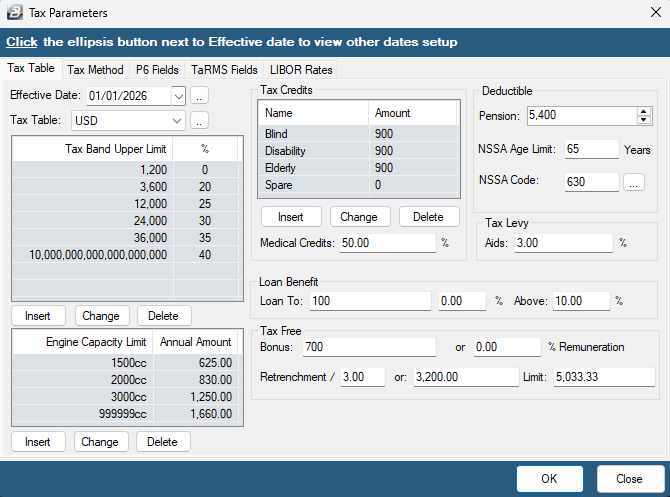
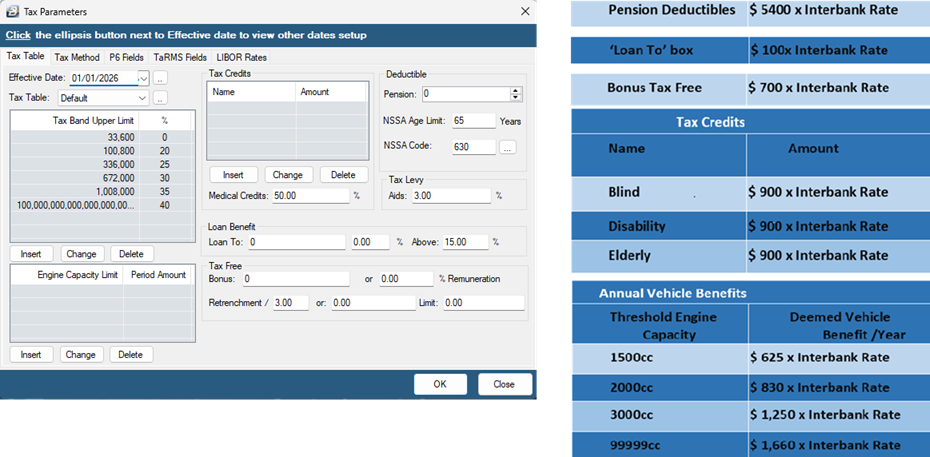
To Insert the 2026 USD Tax Tables - If your payroll is USD/Multicurrency proceed to enter the tax bands as shown on the image below (USD Tax Tables If you close the tax table setup window before completing them, you can access it under Setup - Tax - Existing) Note the following: - The Elderly tax credit age lower limit is 55 years. - Deductible Pension is 5400 - Medical Credits are 50% - Tax Levy Aids is 3%
- After you have finished entering the tax bands (USD tax tables) click on 'OK' to view the payroll in the new year.
Converting Employees to the Applicable Tax Method
- Before commencing your 2026 payroll processing, please ensure the correct tax method.
- FDS Average is the recommended tax method for full-time employees.
- PAYE/Non-FDS is applicable for employees who are seasonal, casual, contract or join during the year.
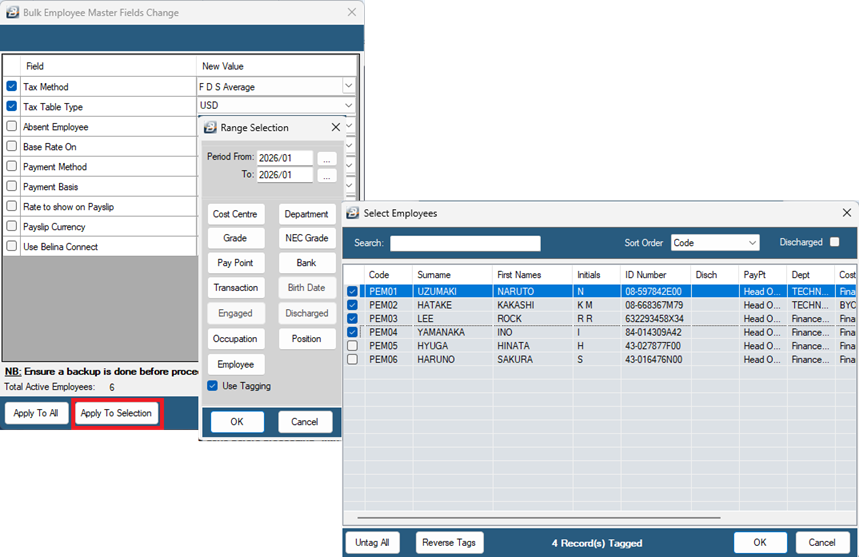
To ensure this setup: Go to Data - Bulk Routines - Employee master file changes
- Tick 'Tax Method' and select 'FDS Average' - Tick 'Tax Table Type' and select 'USD' - Select 'Apply To Selection' - tick 'Use Tagging' - proceed to select the tagging criteria (e.g. by Employee) - Tag the employees who fall under FDS Average tax method. - Click OK to save the selection of employees - Click OK to proceed
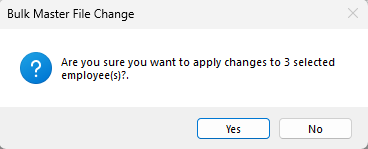
- A pop-up will appear confirming if you want to proceed with the bulk master file change. Click Yes to proceed.
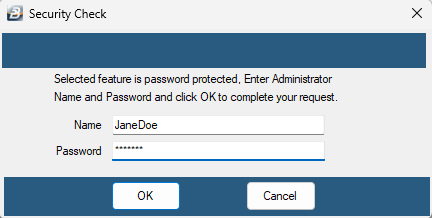
- Enter Administrator Name and Password then click OK to complete the Bulk Master File Change.
- Repeat this process to change the tax method and tax table type for PAYE/Non-FDS Employees.
The Year-End process is complete, and you can commence your January payroll processing.
To learn more about which employees fall under Non-FDS, please read this blog post: Understanding Non-FDS and Streamlining Compliance with Belina Payroll
To Insert the 2026 ZWG Tax Tables - If your payroll is solely in ZWG then enter the tax bands as shown on the image below (ZWG Tax Tables If you close the tax table setup window before completing them, you can access it under Setup - Tax - Existing)
Please note the communication from the Ministry Of Finance as provided for in Section 57 of the Finance Act, on the figures to be used for vehicles benefits, loan benefits, bonus tax free, deductible pension and tax credits.
|